Authenticator App for login verification OTP (one-time password)
With the 2-factor authentication (2FA) security settings, it is necessary to enter an extra security code when logging in after entering the credentials (username/email and password), which is transmitted or generated via SMS or the Authenticator app.
We recommend using an authenticator app, as you do not need an internet connection or mobile phone service for it.
The following apps are available for using 2-factor authentication via OTP (one-time password):
- Password manager of your choice. Most password managers support the necessary TOTP protocol
- netfiles OTP App for Android – Google Play Store
- netfiles OTP App for iOS 9.0+ Apple App Store
- Google Authenticator for Android – Google Play Store
- Google Authenticator for iOS – Apple App Store
- Authy for Android – Google Play Store
- Authy for iOS – Apple Store
Setup
In the personal settings, each user can independently choose between SMS or Authenticator app for login verification (the default setting is SMS). If this option does not appear in the personal settings, login verification has not been activated by the data room administrator.
Click on “Your name” at the top right of the data room and then select “Security”. Here you can choose between Authenticator app and SMS under “2-factor authentication”. SMS is preselected, click on Authenticator app.
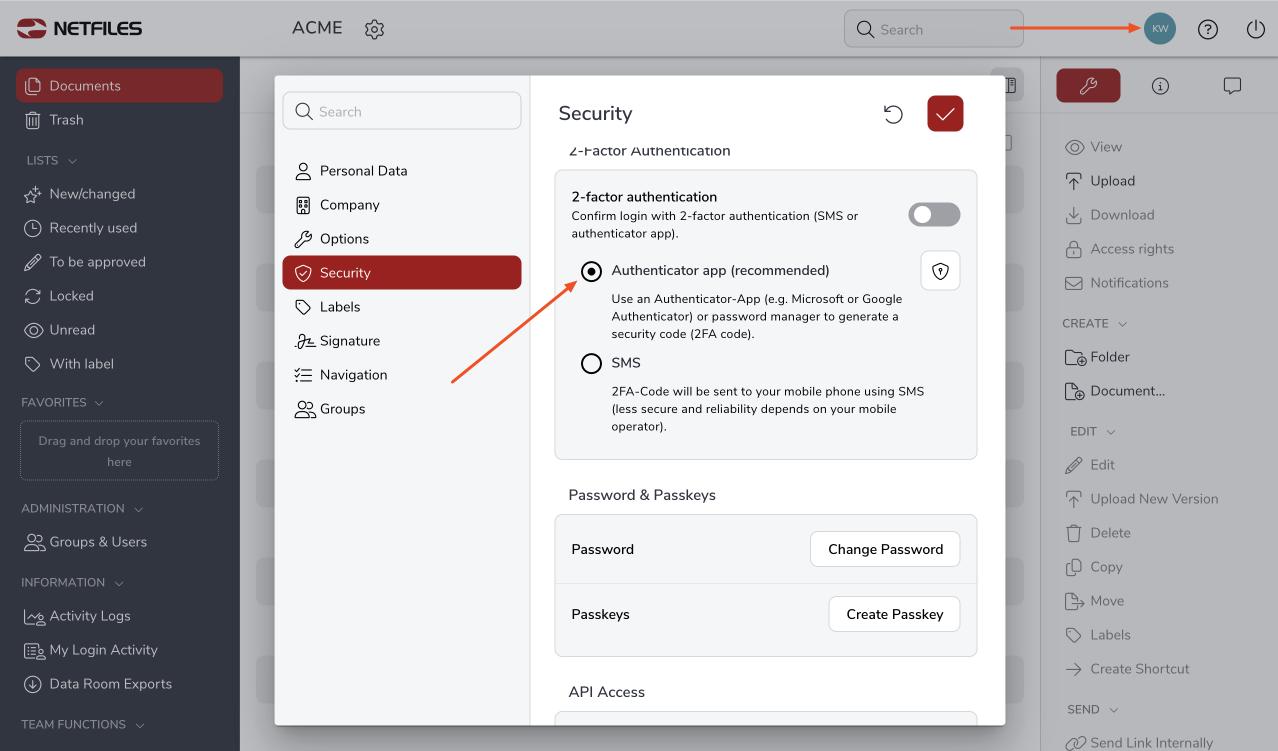
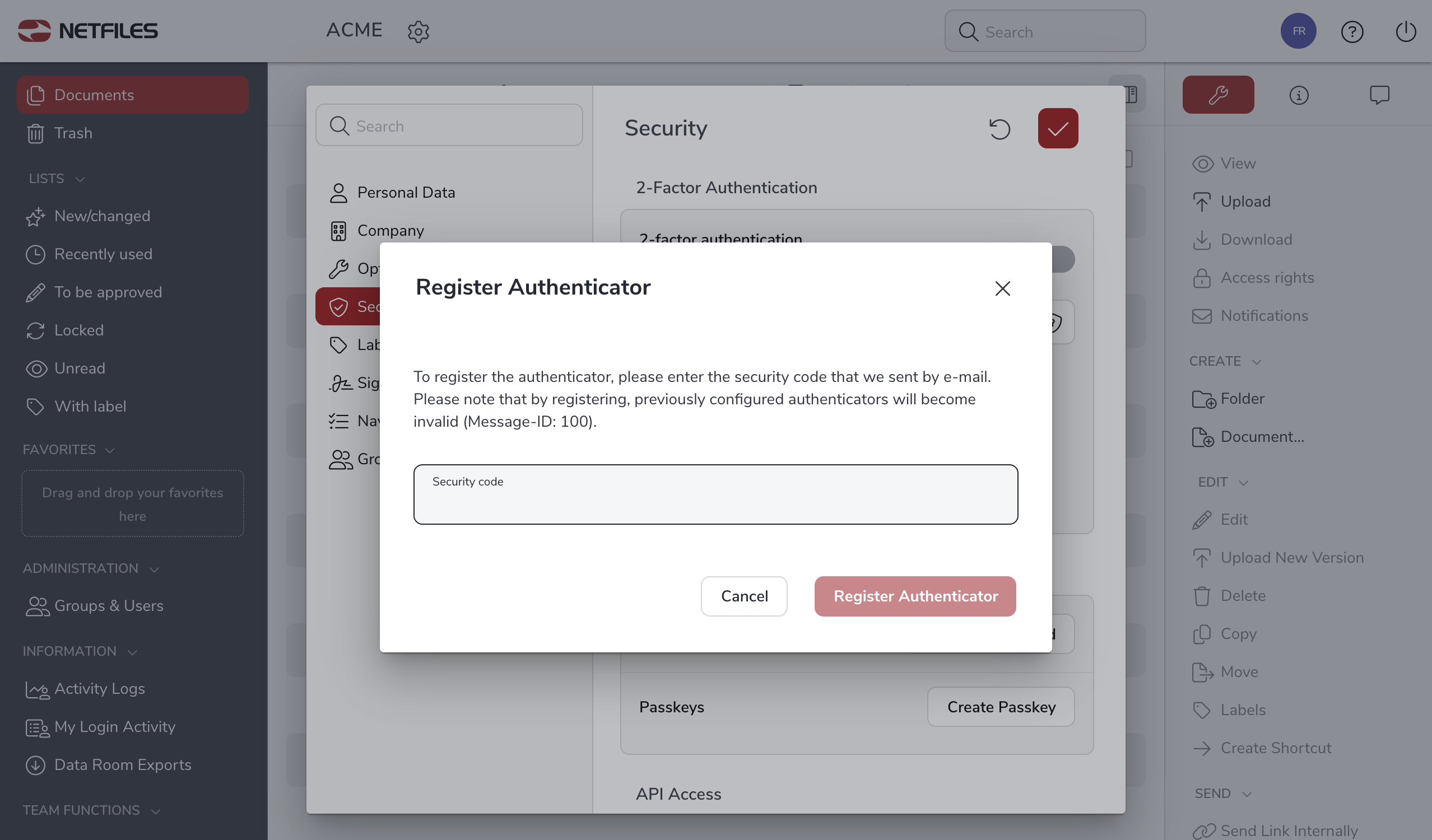
In the next dialog, please confirm the change of login verification from SMS to Authenticator app with a security code, which you will receive either by e-mail or SMS.
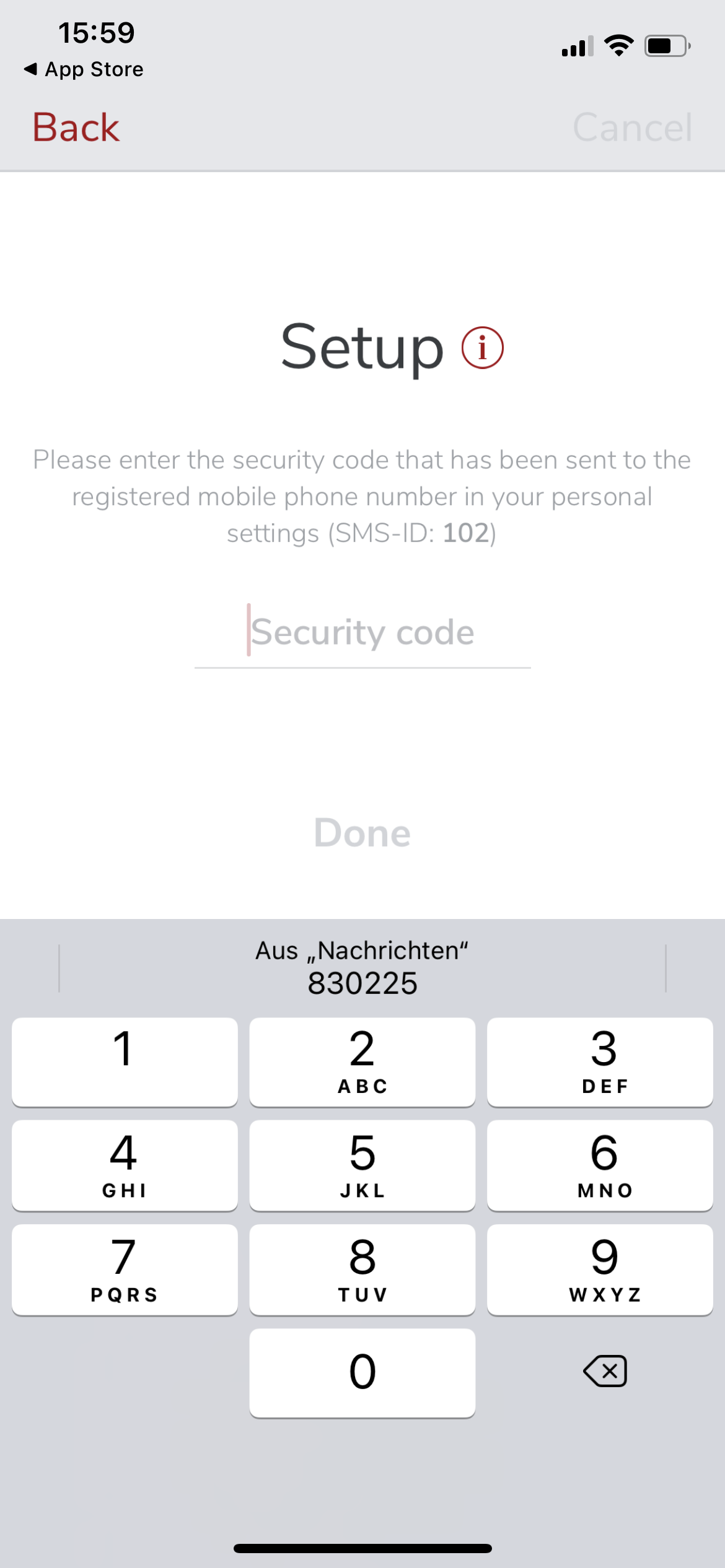
Setting up the OTP app
To set up the Authenticator app, a security code is sent to the user’s cell phone by SMS after the user and password have been entered when using the netfiles app. This security code must be entered once after entering the netfiles user name and password in the netfiles Authenticator app when setting up the app.
When using another authenticator app, such as Google Authenticator, the security code from the following dialog must be entered into the app or transmitted via QR code.
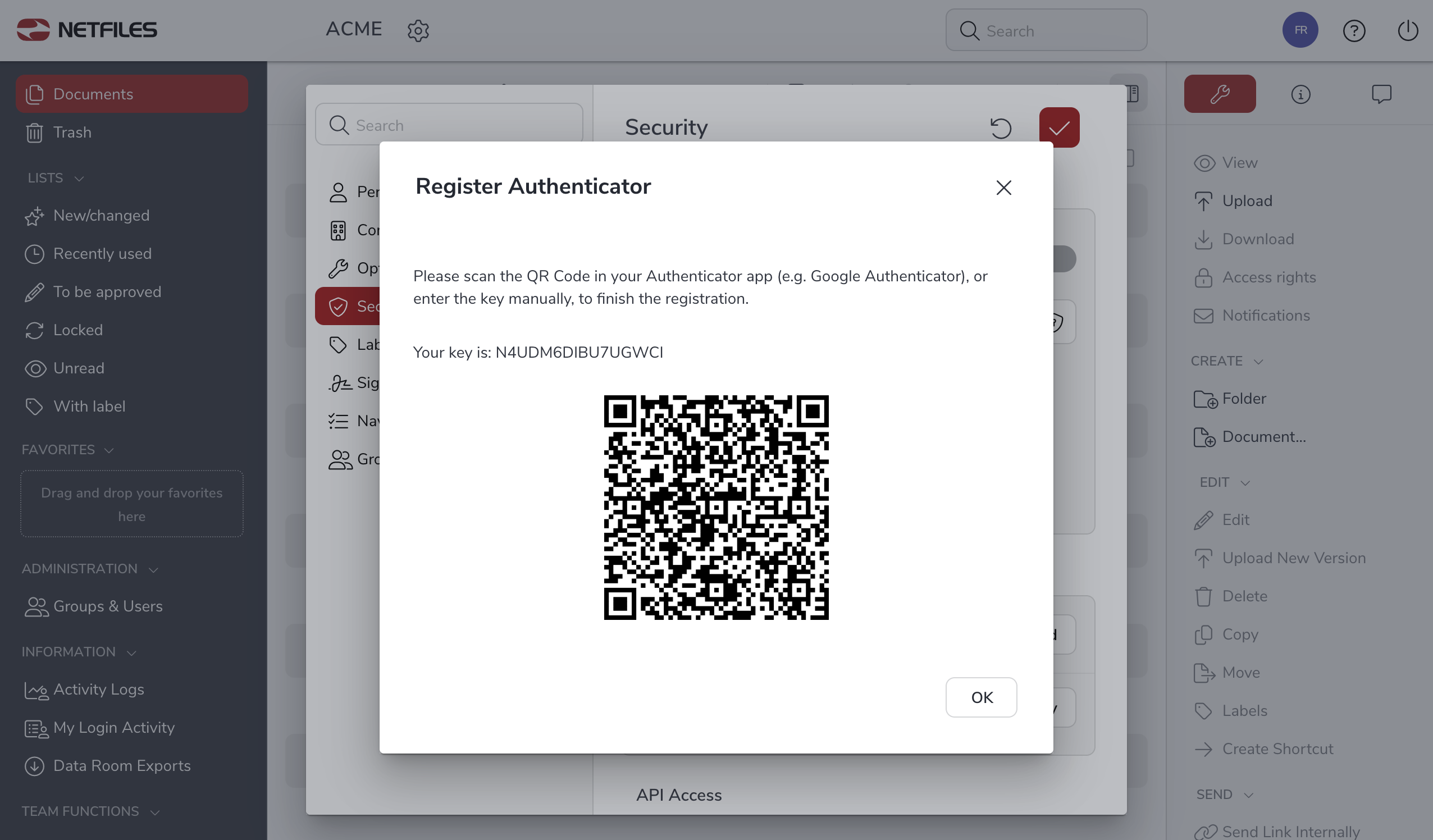
After setting up the Authenticator app, the app automatically generates one-time passwords.
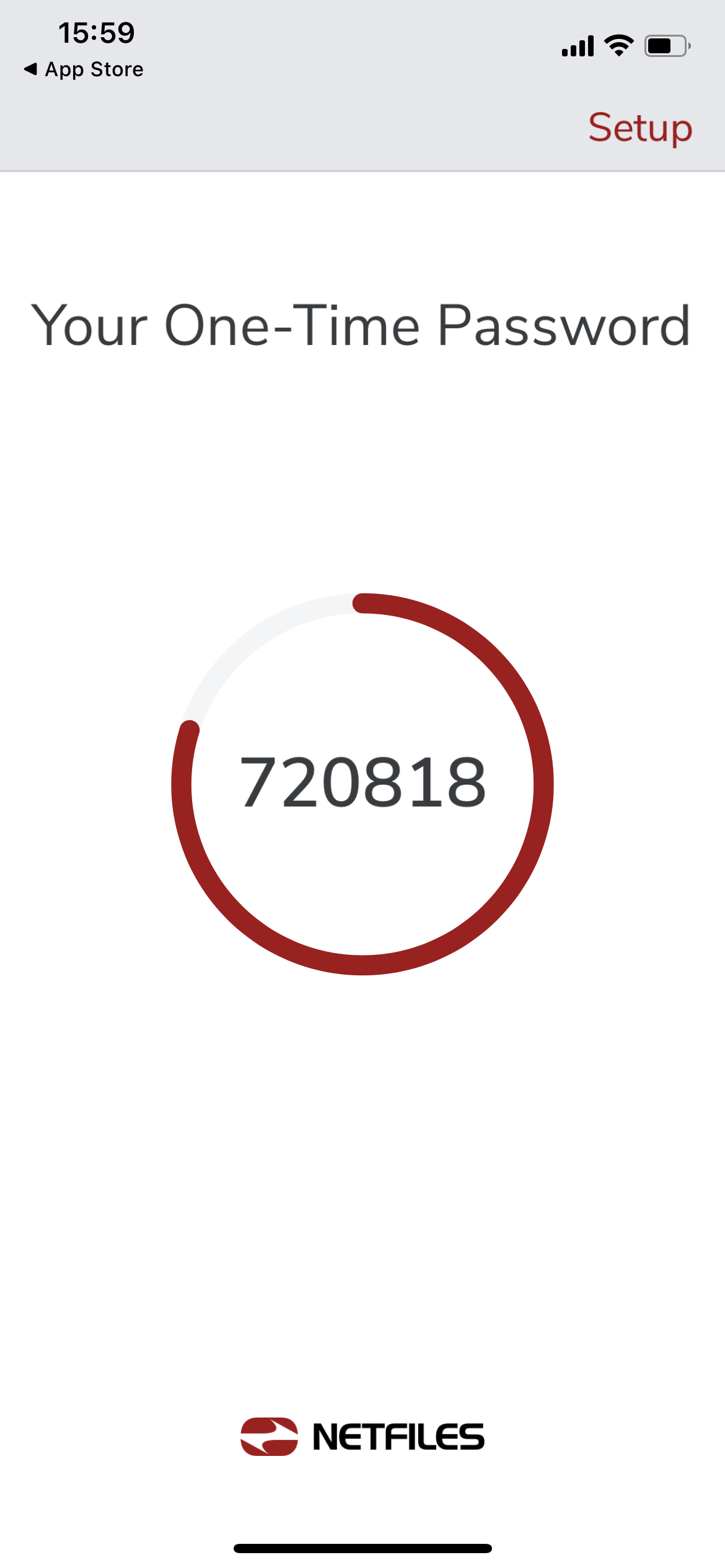
The next time you log in to your netfiles data room, you must enter the one-time password from the Authenticator app after entering the access data.

