Login activity
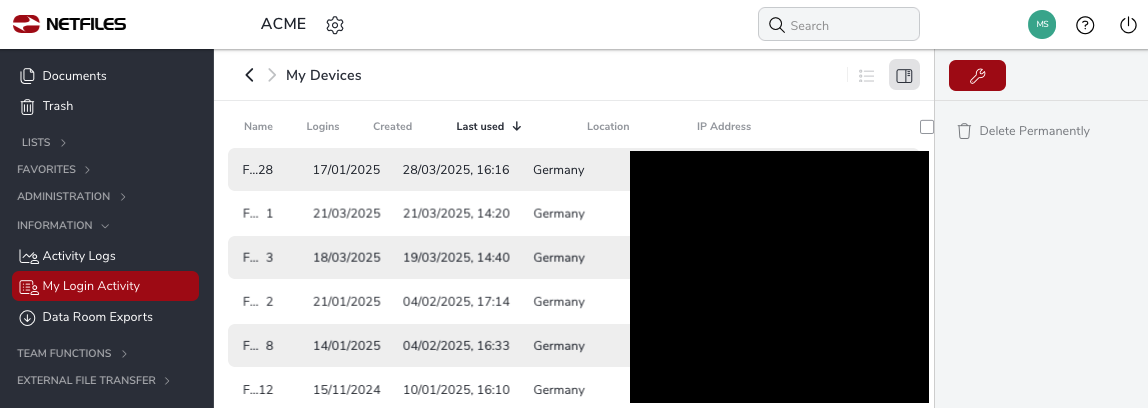
As a user, an overview of your login activity is available in netfiles. All logins to your netfiles user account are logged in this list. When you log in to netfiles for the first time with a new application (e.g. a new web browser or via the netfiles app), a new log entry is created. This entry contains the date, location and IP address of the last login. Depending on your internet provider, the location of the login may only be approximated.
Overview of login activity
Click on “My Login Activity” under “Information” in the left-hand navigation bar.
New login/deleting browser cookies
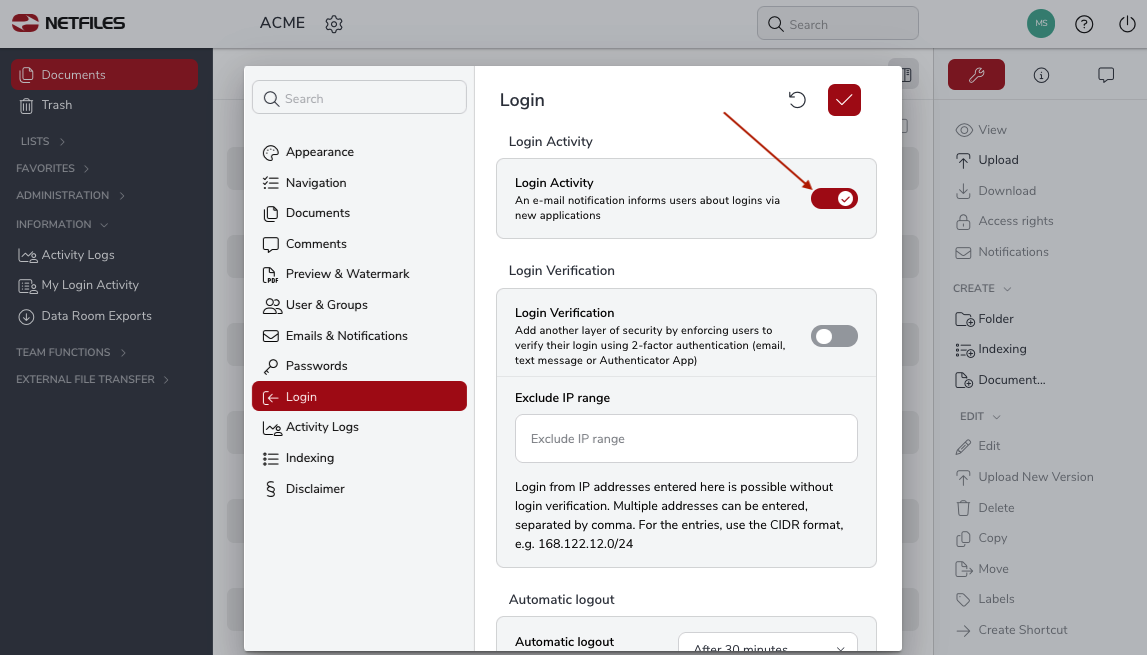
When you log in with a new application for the first time, a corresponding email notification is sent to you. Please note that this email notification will be sent again the next time you log in with this browser if you have previously deleted all browser cookies.
Administrators can deactivate or activate the e-mail notification for logins with a new application in the data room settings (by clicking on the gearwheel icon next to the data room name and navigating to the “Login” section).
Deleting login activities
Individual items can be removed from the overview using the “Delete Permanently” button in the right-hand navigation bar. Depending on the settings of the data room, this may require a new verification at the next login (see “Login verification” in the security preferences for administrators).
Suspicious login activity
Unknown login activity in your overview may be an indication that your netfiles user credentials are being used by unauthorized persons. If you recognize logins here that have not been made or authorized by you, you should change your netfiles password immediately.
-
General
- Introduction to netfiles
- Creating a passkey for netfiles
- Logging into netfiles with a passkey
- Navigation in the data room
- List view, explorer view, icon view
- Login verification 2-factor authentication (Admin)
- Context menu
- Supported web browsers
- Authenticator App for login verification OTP (one-time password)
-
Administration
-
- Interfaces API access
- SFTP Passwordless authentication (Admin)
- SFTP – netfiles integration in Windows (Admin)
- SFTP Technical documentation (Admin)
- WebDAV/SFTP - Client programs (Admin)
- WebDAV - netfiles integration in Windows
- WebDAV Interface (Upgrade new interface)
- Microsoft Office - Editing on WebDAV network drive blocked
-
Data Room Settings
- Appearance settings - logo & colors (Admin)
- Navigation / Features Settings (Admin)
- Documents Settings (Admin)
- Comments Settings (Admin)
- Preview & Watermark settings (Admin)
- User & Groups settings (Admin)
- Emails & Notifications settings (Admin)
- Password settings (Admin)
- Login settings (Admin)
- Activity Logs settings (Admin)
- Indexing settings (Admin)
- Disclaimer settings (Admin)
- Sample disclaimer for the netfiles data room
-
Users and Groups
-
Documents
-
- Send link internally
- External Data Transfer / Secure File Transfer – send
- Sent folder External file transfer
- Activity log External Data Transfer (secure file transfer)
- Sending download links with own e-mail program / external date transfer
- Receive file - External file transfer (secure file transfer)
- Automatic notifications of changes
- Automatic notification of changes (Admin)
- Upload
- Upload ZIP archives
- Download
- Folders
- Comments settings (Admin)
- Comments on folders and files
- Rename folder description and folder
- New document
- Document preview
- Document preview - supported file formats
- CAD Viewer / document preview
- Redact PDF files
- Create private annotations (comments) to files
- Create shared annotations (comments) to files
- Mark unread documents
- Document description
- Copying and moving folders or files
- Create link
- Delete / Trash
- Delete files / Trash (Admin)
- Filter function
- Favorites
- Lists - new, modified, unread, expired and to be approved documents
- Personal labels
- Group labels
- Encrypt PDF files for download (Admin)
- Versioning of documents
- Document approval / release workflow (Admin)
- Open XLSX files in navigable preview
- Setup editing Office documents online with OnlyOffice (Admin)
- Editing Office documents online in netfiles with OnlyOffice
- Editing Office documents together online with Only Office
- Setup editing Office documents directly from netfiles with Microsoft Office (Admin)
- Editing files in netfiles directly with Microsoft Office
- Weitere Artikel (21) Artikel reduzieren
-
-
FAQ
- How can I change the data room name / project name? (Admin)
- Tips and information on security settings in netfiles
- How can I check which documents users/user groups have access to? (Admin)
- How can I control which other users can see a user in the data room? (Admin)
- How can I restrict user access or data room access in terms of time? (Admin)
- Who can see the recycle bin and with what content?
- Why does the document preview not display a document?
- How do I ensure that users do not see each other? (Admin)
- How can I restrict user access or data room access in terms of time? (Admin)
- How can I restrict a user's access to two or more subfolders? (Admin)
- Why is there a red box in front of my file name?
- How do I change my e-mail address?
-
netfiles Data Vault
-
netfiles Enterprise Data Room Premium
-
netfiels Send

