Send files netfiles Send
With netfiles Send you can transfer large files and entire folders quickly, easily and securely.
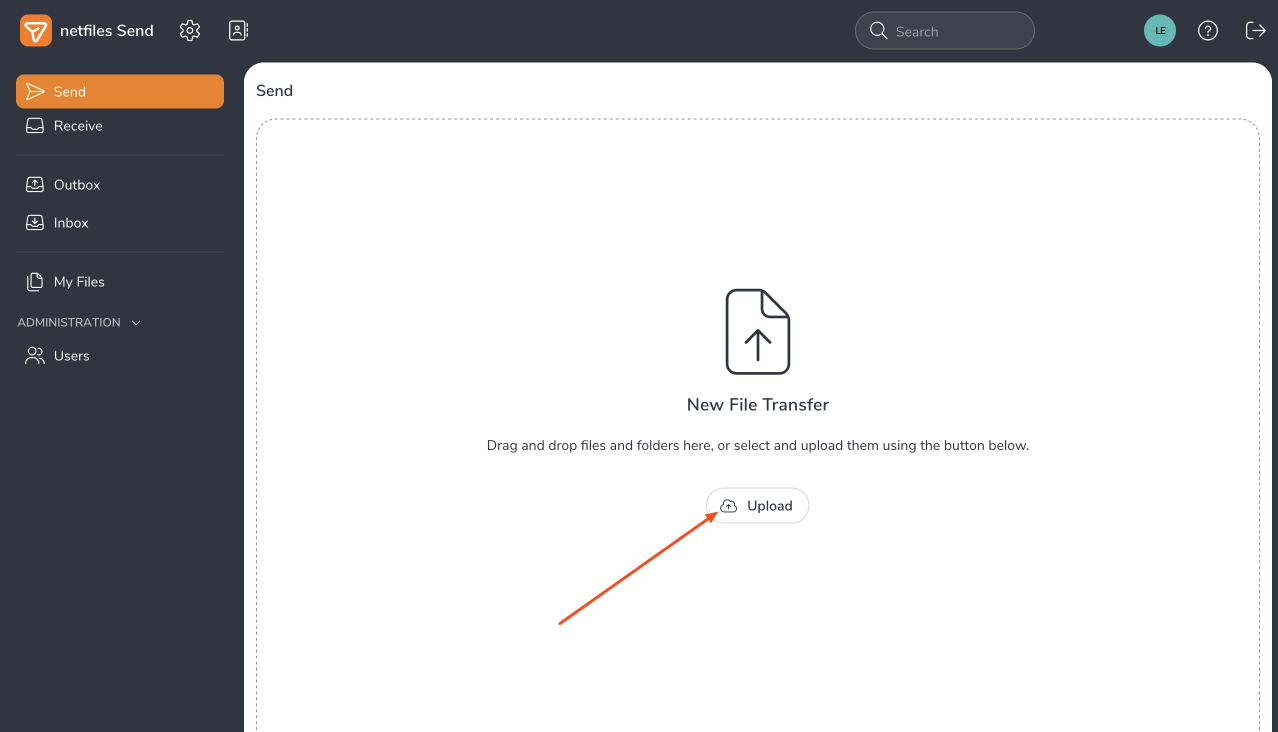
Select the file directly from your file system by clicking on “Send files” on the left or right. Alternatively, you can drag and drop the file or folder into the left-hand sending area.
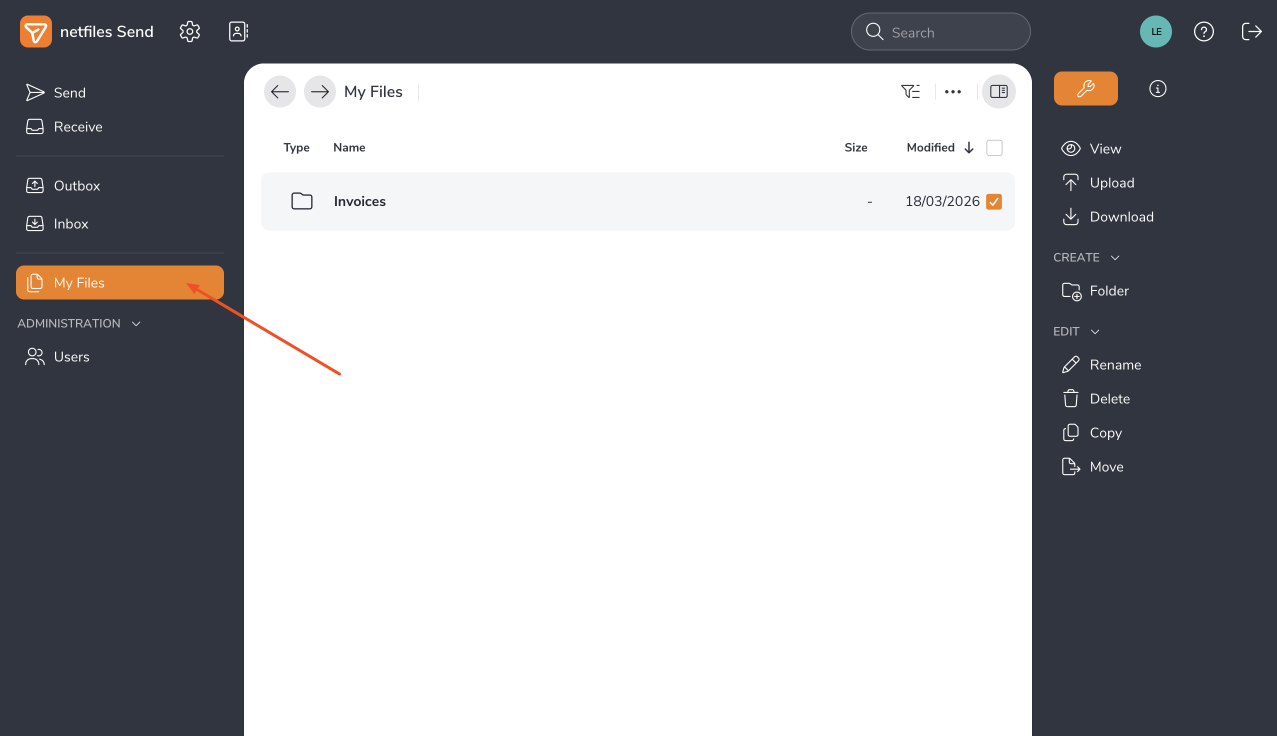
For a good overview of the files sent and the accesses, you can store your files securely under “My files” and send them multiple times from there. Even if you make changes to the files or folders after sending, the recipient will always receive the latest version.
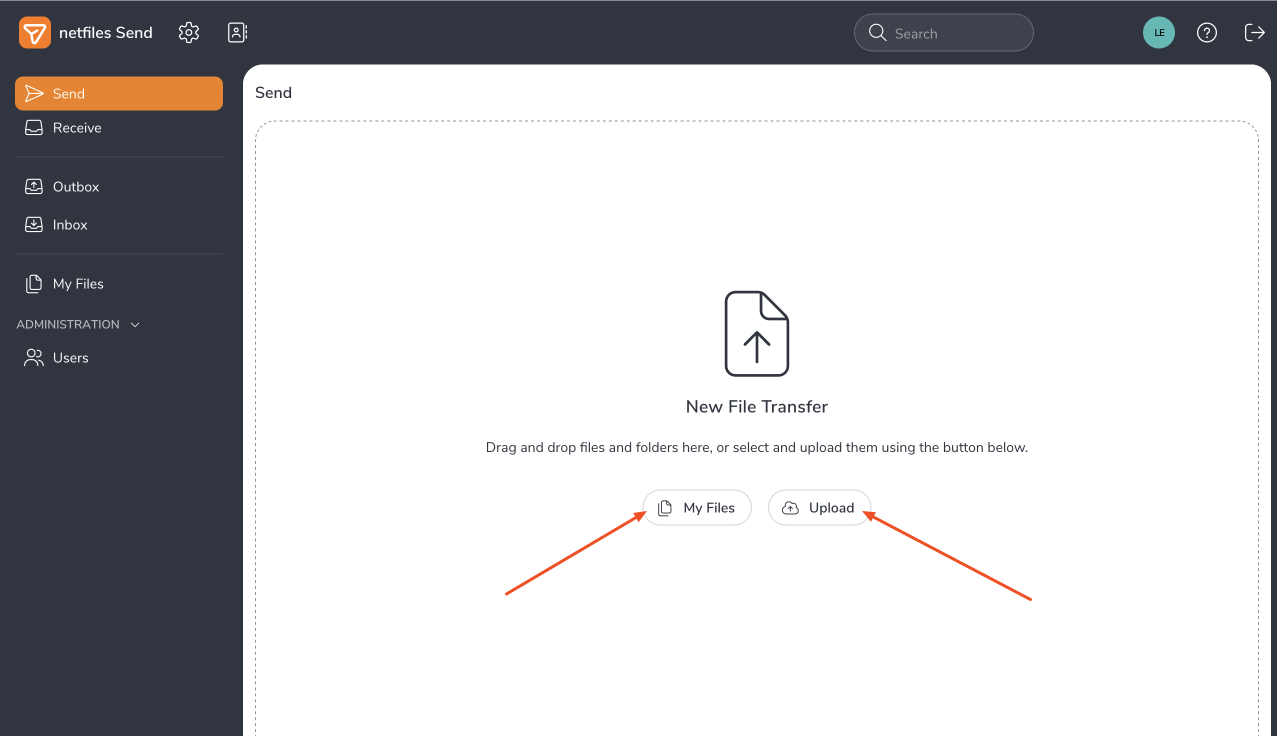
In the upload area under “Send”, you can select files or folders from “My Files” or upload them from your computer.
In the next dialog, enter a “Title” and the desired e-mail address(es) to which you want to send. You can also select existing contacts from your “Address book” by clicking on the book in the e-mail line. Under “Valid until” you can specify the validity of the link or download.
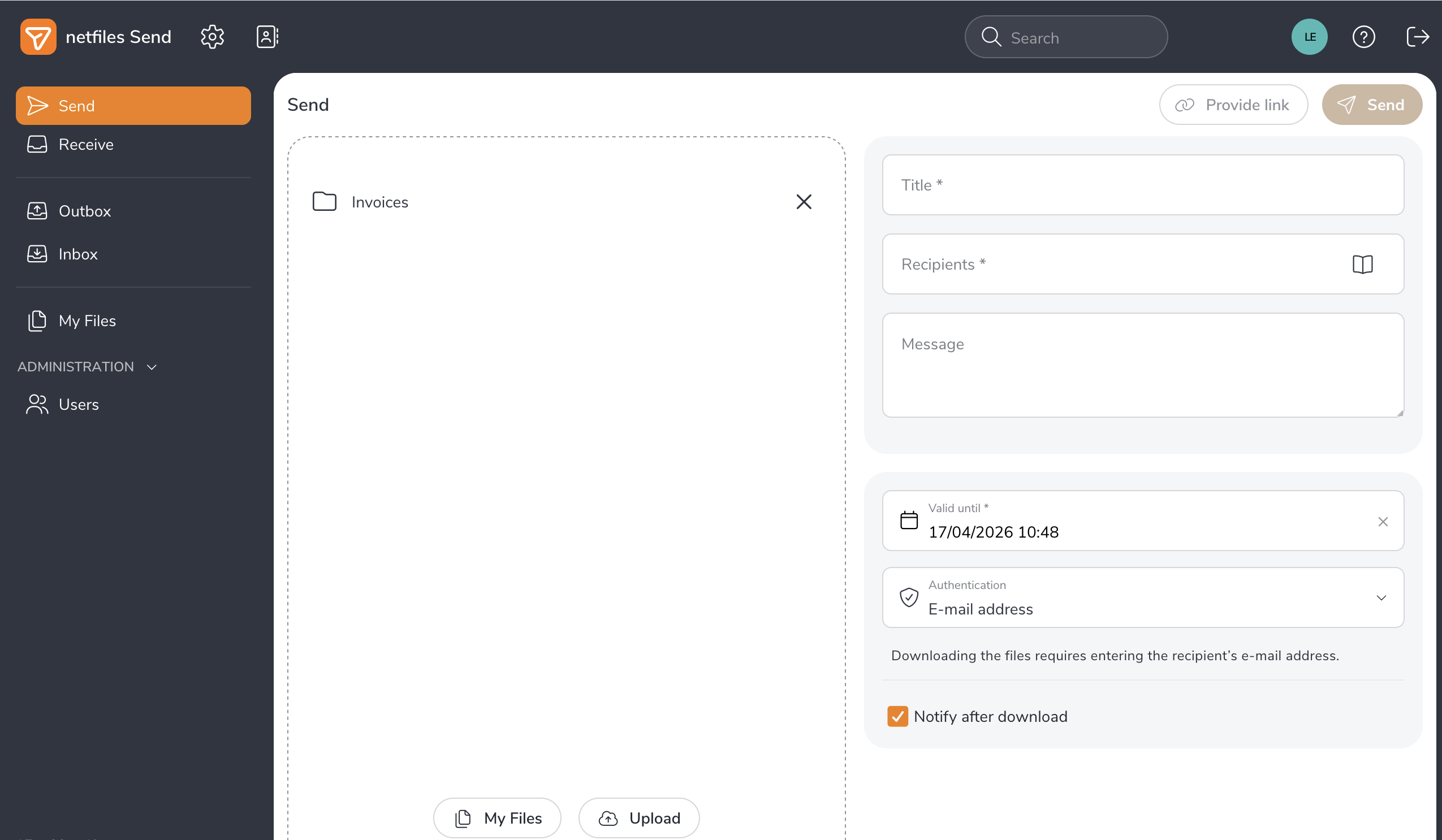
In the “Sender verification” area, you can choose whether the recipient must enter their email address to download, confirm their email address with an automatically generated security code or enter a password. You define the password in this dialog and must send it to the recipient in a different, secure way.
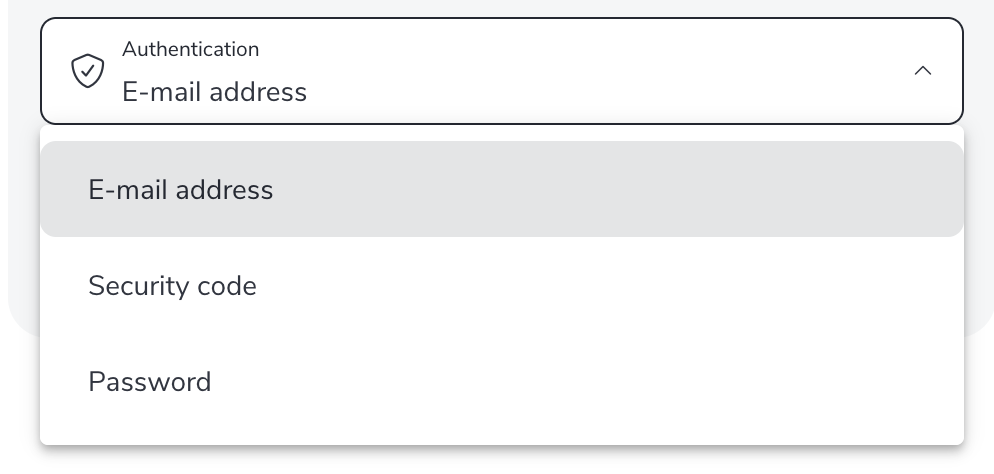
Finally, select whether the link should be sent with netfiles or provided to you. You cannot provide a link if you have selected the “Security code” authentication.
You can optionally add a subject and a message.

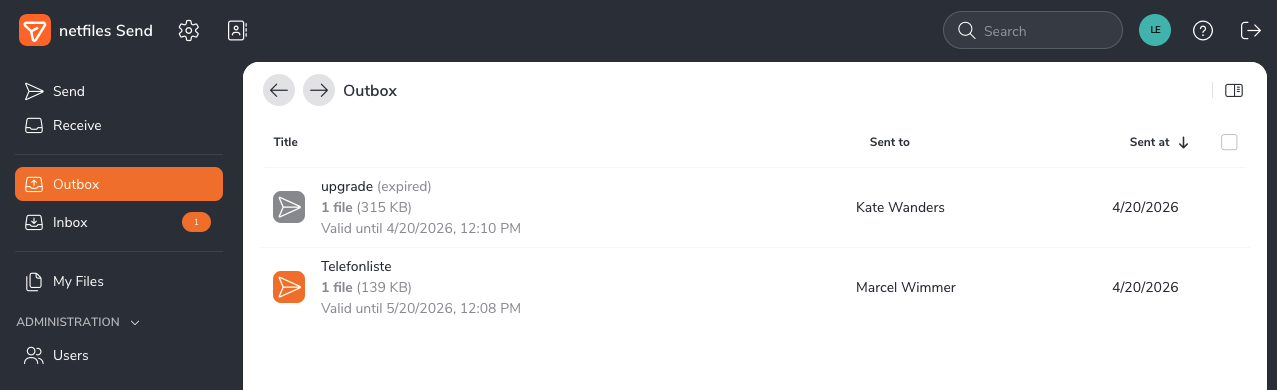
After you have clicked on “Send link”, the dispatch will appear in “Sent”.
-
General
- Introduction to netfiles
- Creating a passkey for netfiles
- Logging into netfiles with a passkey
- Navigation in the data room
- List view, explorer view, icon view
- Login verification 2-factor authentication (Admin)
- Context menu
- Supported web browsers
- Authenticator App for login verification OTP (one-time password)
-
Administration
-
- Interfaces API access
- SFTP Passwordless authentication (Admin)
- SFTP – netfiles integration in Windows (Admin)
- SFTP Technical documentation (Admin)
- WebDAV/SFTP - Client programs (Admin)
- WebDAV - netfiles integration in Windows
- WebDAV Interface (Upgrade new interface)
- Microsoft Office - Editing on WebDAV network drive blocked
-
Data Room Settings
- Appearance settings - logo & colors (Admin)
- Navigation / Features Settings (Admin)
- Documents Settings (Admin)
- Comments Settings (Admin)
- Preview & Watermark settings (Admin)
- User & Groups settings (Admin)
- Emails & Notifications settings (Admin)
- Password settings (Admin)
- Login settings (Admin)
- Activity Logs settings (Admin)
- Indexing settings (Admin)
- Disclaimer settings (Admin)
- Sample disclaimer for the netfiles data room
-
Users and Groups
-
Documents
-
- Send link internally
- External Data Transfer / Secure File Transfer – send
- Sent folder External file transfer
- Activity log External Data Transfer (secure file transfer)
- Sending download links with own e-mail program / external date transfer
- Receive file - External file transfer (secure file transfer)
- Automatic notifications of changes
- Automatic notification of changes (Admin)
- Upload
- Upload ZIP archives
- Download
- Folders
- Comments settings (Admin)
- Comments on folders and files
- Rename folder description and folder
- New document
- Document preview
- Document preview - supported file formats
- CAD Viewer / document preview
- Redact PDF files
- Create private annotations (comments) to files
- Create shared annotations (comments) to files
- Mark unread documents
- Document description
- Copying and moving folders or files
- Create link
- Delete / Trash
- Delete files / Trash (Admin)
- Filter function
- Favorites
- Lists - new, modified, unread, expired and to be approved documents
- Personal labels
- Group labels
- Encrypt PDF files for download (Admin)
- Versioning / Chance tracking of documents
- Document approval / release workflow (Admin)
- Open XLSX files in navigable preview
- Setup editing Office documents online with OnlyOffice (Admin)
- Editing Office documents online in netfiles with OnlyOffice
- Editing Office documents together online with Only Office
- Setup editing Office documents directly from netfiles with Microsoft Office (Admin)
- Editing files in netfiles directly with Microsoft Office
- Weitere Artikel (21) Artikel reduzieren
-
-
FAQ
- How can I change the data room name / project name? (Admin)
- Tips and information on security settings in netfiles
- How can I check which documents users/user groups have access to? (Admin)
- How can I control which other users can see a user in the data room? (Admin)
- How can I restrict user access or data room access in terms of time? (Admin)
- Who can see the recycle bin and with what content?
- Why does the document preview not display a document?
- How do I ensure that users do not see each other? (Admin)
- How can I restrict user access or data room access in terms of time? (Admin)
- How can I restrict a user's access to two or more subfolders? (Admin)
- Why is there a red box in front of my file name?
- How do I change my e-mail address?
-
netfiles Data Vault
-
netfiles Enterprise Data Room Premium
-
netfiles Send
-
netfiles for Microsoft Teams

