Installing and setting up netfiles for Microsoft Teams
With netfiles for Microsoft Teams, you can access your data rooms, folders and documents directly in Microsoft Teams. This article explains the requirements, how to install the app and how to set up access to netfiles.
Requirements
netfiles for Microsoft Teams is available for netfiles Data Room Professional and netfiles Data Room Premium in the current product version.
Before users can access a data room through Microsoft Teams, a data room administrator must enable the function in the data room settings.
Enabling access via Microsoft Teams in the data room
This step can only be completed by a data room administrator.
- Open the relevant data room in the netfiles web application.
- Go to Data Room Settings > API Access.
- Enable Allow access with MS Teams.
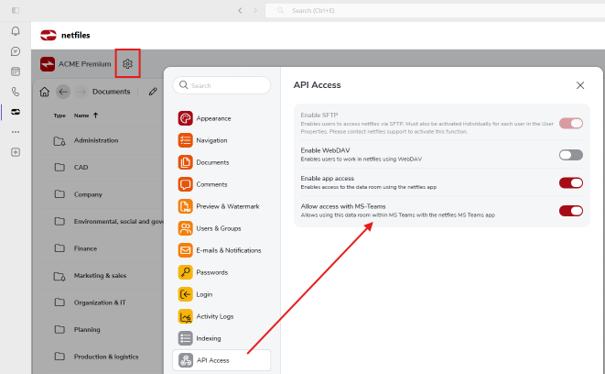
Users can then access the data room with netfiles for Microsoft Teams. If the option is not displayed or you cannot change the setting, please contact your data room administrator.
Installing netfiles for Microsoft Teams
You can install netfiles for Microsoft Teams directly from the Apps section in Microsoft Teams.
- Open Microsoft Teams.
- Select Apps in the left-hand navigation bar.
- Search for netfiles.
- Select netfiles for Microsoft Teams and add the app to Microsoft Teams.
Tip: Pin the app to the navigation bar
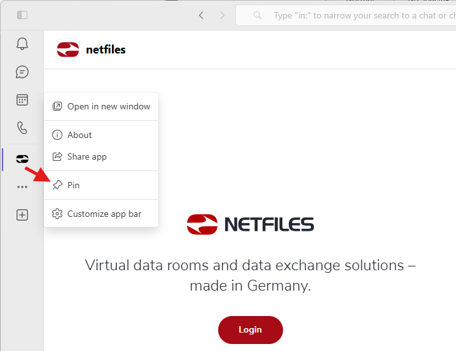
For quick access, you can pin netfiles for Microsoft Teams to the left-hand navigation bar. Open the app’s context menu and select Pin. The app will then remain visible in the Microsoft Teams navigation bar.
Logging in to netfiles
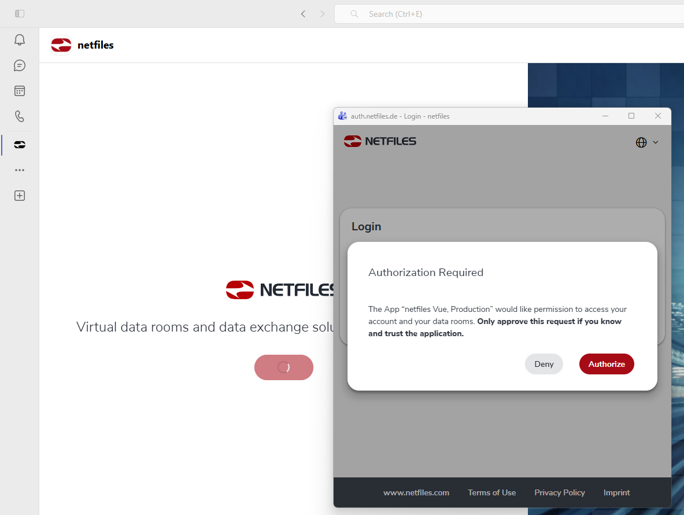
Open netfiles for Microsoft Teams and log in with your netfiles credentials. Then authorize access through Microsoft Teams.
Once you have logged in successfully, you can access all compatible data rooms that your netfiles user account has permission to access.
Note: Your saved sign-in in Microsoft Teams
When you authorize access, Microsoft Teams is registered for access to your netfiles user account. This means that you do not have to enter your netfiles password each time you open the app.
Your session within the app is governed by your Microsoft Teams sign-in and security settings. The automatic logout period configured in the data room settings therefore does not apply in the same way as it does when you use the netfiles web interface directly.
You can manage or revoke the authorization for Microsoft Teams in your netfiles user account under Settings > Security > Authorized apps.

