Using netfiles in Microsoft Teams
Once you have logged in, you can open your data rooms and work with your folders and documents directly in Microsoft Teams.
The user interface has been adapted for convenient use within Microsoft Teams. The main document management functions remain available.
Some controls are in different positions than in the netfiles web app:
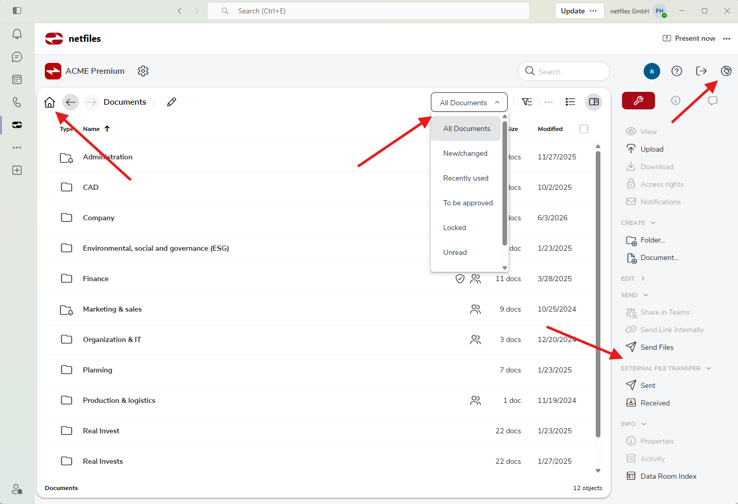
- Use the Home button in the upper-left corner to return to the top-level folder of the open data room.
- Filters such as Unread and Recently used are available from a drop-down menu in the header.
- The Sent and Received sections of External File Transfer are available in the right-hand column.
Opening advanced functions in the web interface
You can open advanced administrative functions directly in the netfiles web application.
Select the globe icon in the upper-right corner. netfiles opens in your web browser and takes you directly to the relevant data room. As long as your authorization remains valid, you do not need to log in again.
This gives you access to functions that are not available within Microsoft Teams.
Sharing documents and folders in a Teams chat
You can share a direct link to a document or folder from netfiles in a Teams chat.
- Select the document or folder you want to share.
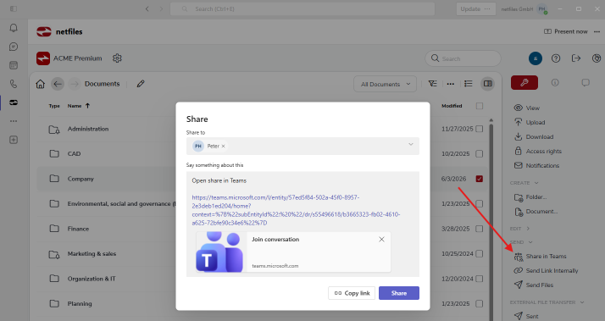
- Select Share in Teams in the right-hand column.
- Select the relevant chat or recipient and send the link.
Access permissions when sharing
Sharing a link in Microsoft Teams does not change any access permissions in netfiles.
The recipient requires:
- their own netfiles user account; and
- permission to access the shared document or folder.
Recipients without the required permission cannot open the linked item.
To send files to people who do not have a netfiles user account, use External File Transfer. The files are shared and sent in accordance with the permissions configured for your data room.
-
General
- Introduction to netfiles
- Creating a passkey for netfiles
- Logging into netfiles with a passkey
- Navigation in the data room
- List view, explorer view, icon view
- Login verification 2-factor authentication (Admin)
- Context menu
- Supported web browsers
- Authenticator App for login verification OTP (one-time password)
-
Administration
-
- Interfaces API access
- SFTP Passwordless authentication (Admin)
- SFTP – netfiles integration in Windows (Admin)
- SFTP Technical documentation (Admin)
- WebDAV/SFTP - Client programs (Admin)
- WebDAV - netfiles integration in Windows
- WebDAV Interface (Upgrade new interface)
- Microsoft Office - Editing on WebDAV network drive blocked
-
Data Room Settings
- Appearance settings - logo & colors (Admin)
- Navigation / Features Settings (Admin)
- Documents Settings (Admin)
- Comments Settings (Admin)
- Preview & Watermark settings (Admin)
- User & Groups settings (Admin)
- Emails & Notifications settings (Admin)
- Password settings (Admin)
- Login settings (Admin)
- Activity Logs settings (Admin)
- Indexing settings (Admin)
- Disclaimer settings (Admin)
- Sample disclaimer for the netfiles data room
-
Users and Groups
-
Documents
-
- Send link internally
- External Data Transfer / Secure File Transfer – send
- Sent folder External file transfer
- Activity log External Data Transfer (secure file transfer)
- Sending download links with own e-mail program / external date transfer
- Receive file - External file transfer (secure file transfer)
- Automatic notifications of changes
- Automatic notification of changes (Admin)
- Upload
- Upload ZIP archives
- Download
- Folders
- Comments settings (Admin)
- Comments on folders and files
- Rename folder description and folder
- New document
- Document preview
- Document preview - supported file formats
- CAD Viewer / document preview
- Redact PDF files
- Create private annotations (comments) to files
- Create shared annotations (comments) to files
- Mark unread documents
- Document description
- Copying and moving folders or files
- Create link
- Delete / Trash
- Delete files / Trash (Admin)
- Filter function
- Favorites
- Lists - new, modified, unread, expired and to be approved documents
- Personal labels
- Group labels
- Encrypt PDF files for download (Admin)
- Versioning / Chance tracking of documents
- Document approval / release workflow (Admin)
- Open XLSX files in navigable preview
- Setup editing Office documents online with OnlyOffice (Admin)
- Editing Office documents online in netfiles with OnlyOffice
- Editing Office documents together online with Only Office
- Setup editing Office documents directly from netfiles with Microsoft Office (Admin)
- Editing files in netfiles directly with Microsoft Office
- Weitere Artikel (21) Artikel reduzieren
-
-
FAQ
- How can I change the data room name / project name? (Admin)
- Tips and information on security settings in netfiles
- How can I check which documents users/user groups have access to? (Admin)
- How can I control which other users can see a user in the data room? (Admin)
- How can I restrict user access or data room access in terms of time? (Admin)
- Who can see the recycle bin and with what content?
- Why does the document preview not display a document?
- How do I ensure that users do not see each other? (Admin)
- How can I restrict user access or data room access in terms of time? (Admin)
- How can I restrict a user's access to two or more subfolders? (Admin)
- Why is there a red box in front of my file name?
- How do I change my e-mail address?
-
netfiles Data Vault
-
netfiles Enterprise Data Room Premium
-
netfiles Send
-
netfiles for Microsoft Teams

